
Web client > Item > Loan Administration
Do you lend items to friends or family? Data Crow keeps track of who has what, since when, and when you would like to have it back. This works for modules whose items can be lent. Everybody who can see an item can see its loans. Only users who are allowed to lend can lend or return an item and change a note.
Lending an item #
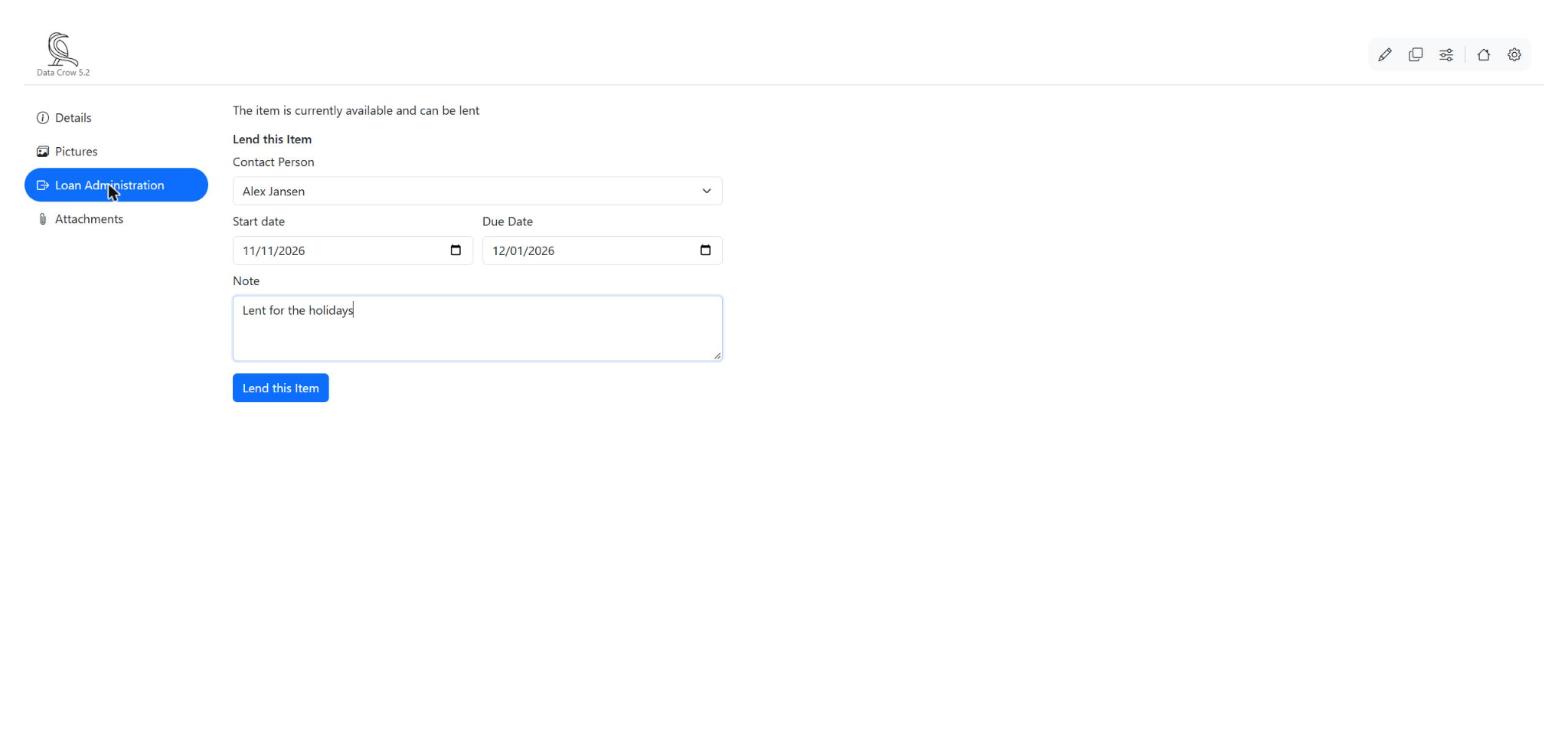
- Open the item and go to the section Loan Administration.
- Choose the Contact Person: the person who borrows the item. Contact persons are items in a module of persons.
- Check the Start date and choose the Due Date, the day you would like to have the item back.
- If you like, add a Note, for example Lent for the holidays.
- Click Lend this Item.
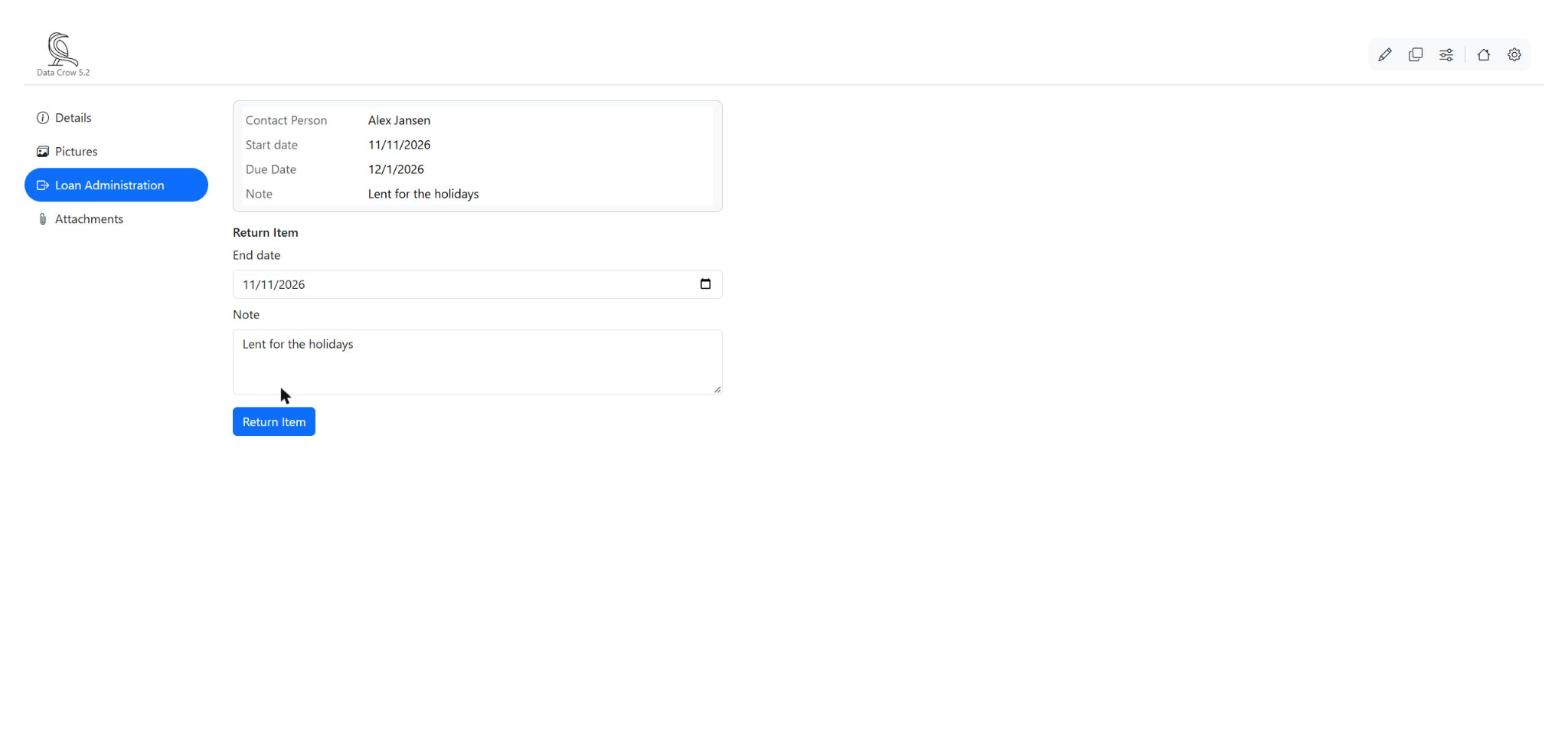
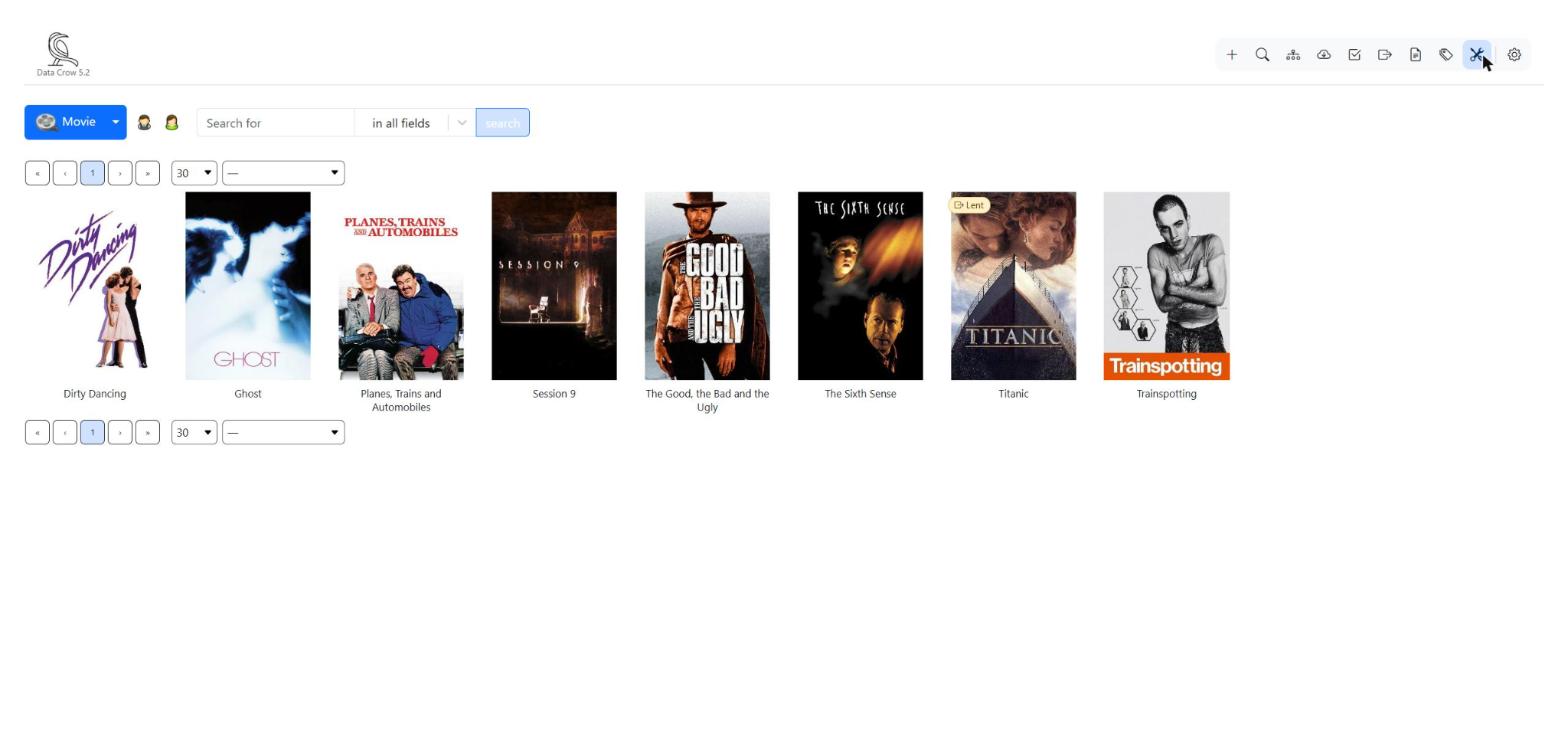
The section now shows who has the item, since when, the due date and the note. When the due date has passed, the loan is marked as overdue. In the overview, a lent item shows a small Lent label on its tile, and an overdue item is marked as well.
Taking an item back #
- Open the item and go to the section Loan Administration.
- Check the end date. It is today by default.
- If you like, add a note.
- Click Return Item.
The loan history #
Under the current loan you find the history: all the loans which have ended, with the contact person, the start and end date and the note. Made a mistake, such as a wrong date? Click the pencil behind the loan, or double click the loan. Change the contact person, the dates or the note, and click Save.
Lending or returning several items at once #
Lending a whole box of items one by one takes a while. Do it in one go:
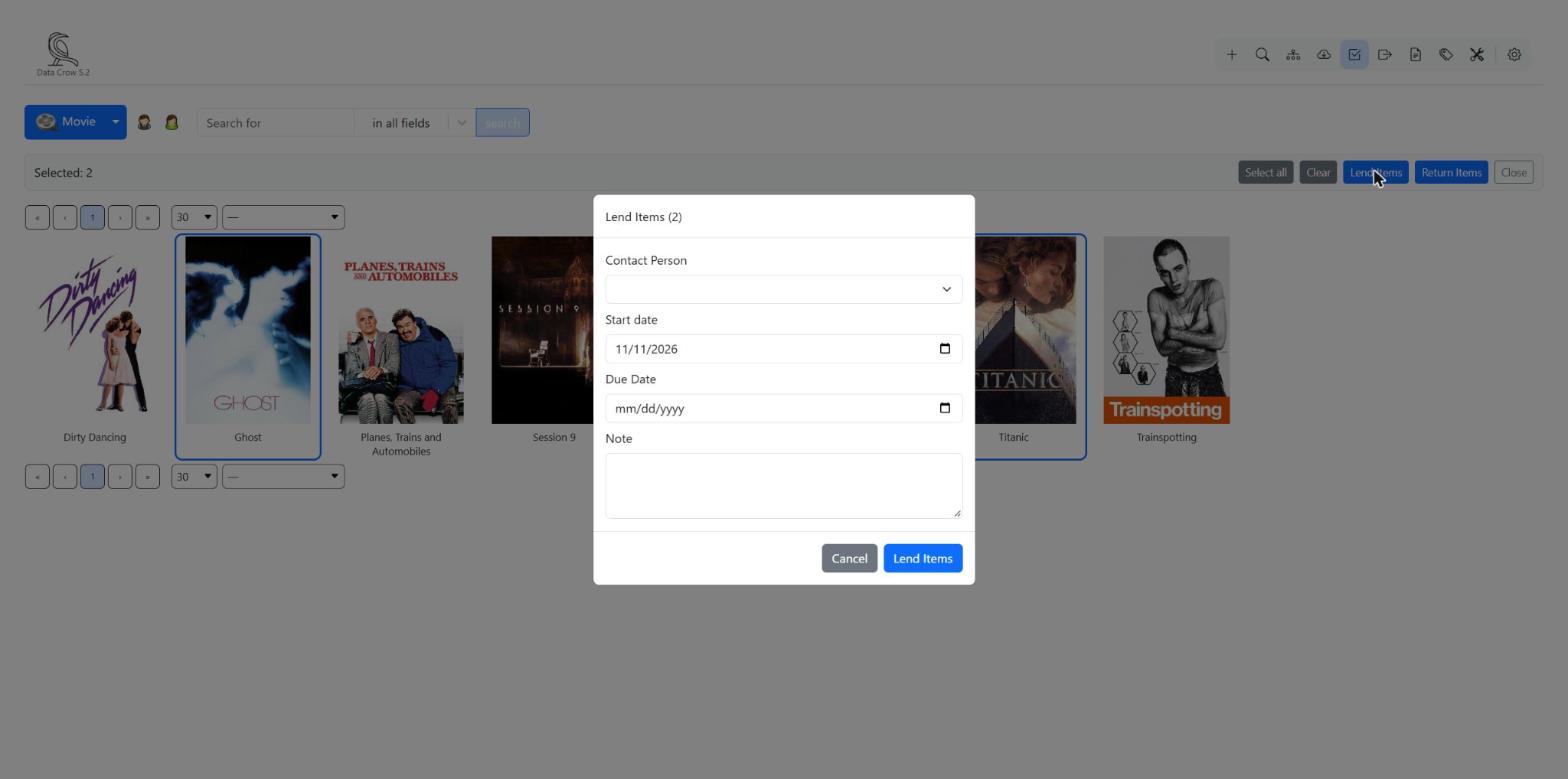
- Click Select items in the top bar of the overview. A selection bar appears.
- Click the items you want to select. Select all selects every item on the page, and Clear empties your selection.
- Click Lend Items or Return Items.
- Choose the contact person and the dates, add a note if you like, and confirm.
- Click Close when you are done.
Items which cannot be lent or returned, for example because they are already lent, are skipped. When it is done, a message lists the items which were skipped and why.
Loan Administration: all your loans at a glance #
Click the button in the top bar of the overview to see the loans of all the items of the module.
- Choose which loans you want to see in the list Loan Type: only the current loans, only the historical loans, or all loans.
- If you like, narrow down the list: choose a contact person, a start date or a due date, or tick Overdue loans only to see what you should ask back.
- Click Search.
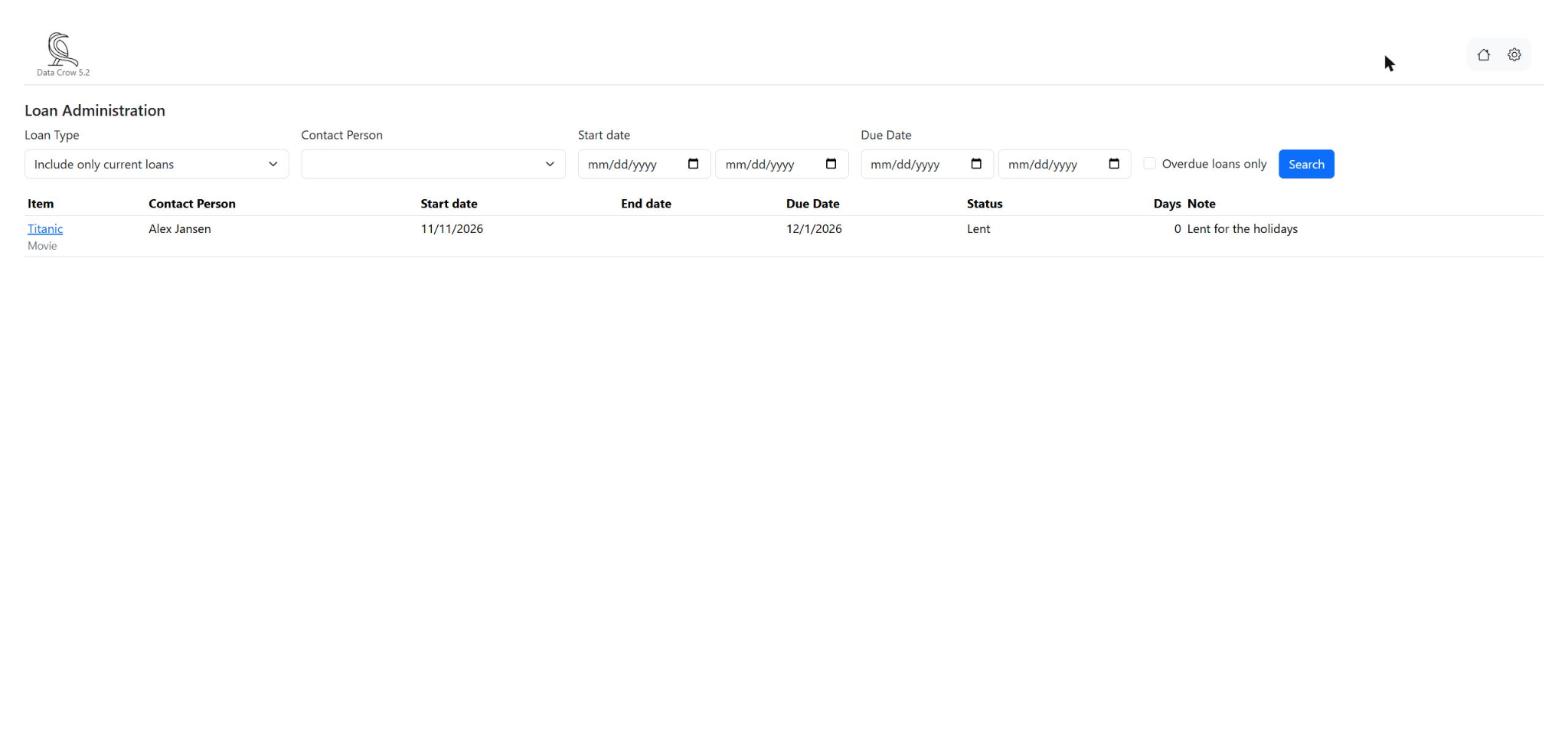
For every loan the list shows the item, the contact person, the start, end and due date, the status, the number of days and the note. Click the pencil to change a loan. Click the name of a contact person to see all the loans of that person.
You can also look at the loans of one person from that person’s own page: open the person and click Loan Administration.


