
Web client > Overview > Online Search
Typing all the details of an item takes time. With Online Search, Data Crow looks the item up on the internet for you and adds it to your collection, with its details and pictures. The button is in the top bar of the overview. You only see it for modules which have online services, and when you are allowed to add items.
Searching on the internet #
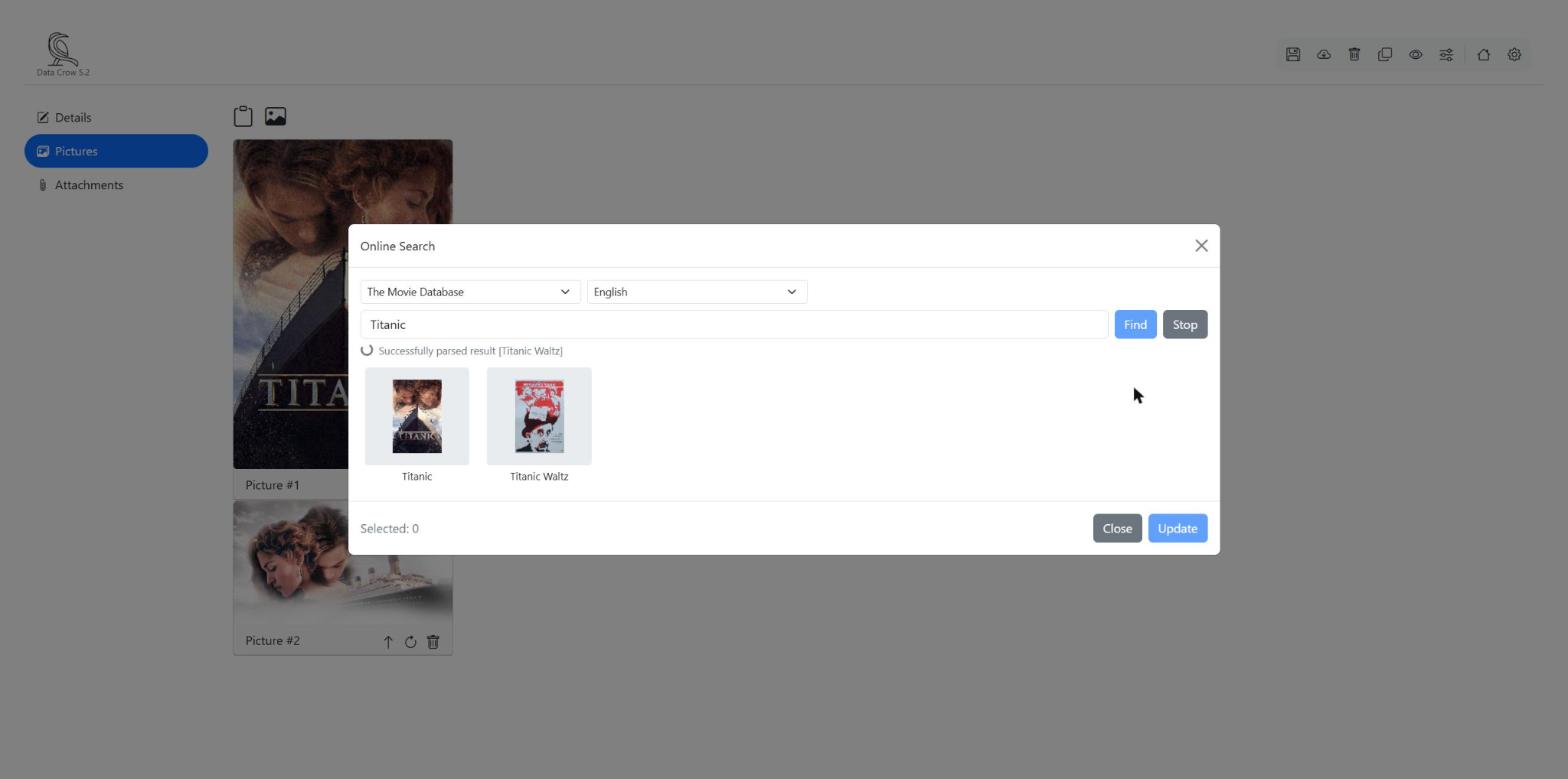
- Click Online Search .
- If the module has more than one online service (a website which Data Crow can search), choose the one you want to use.
- Depending on the service you can also choose a region, a search mode (for example searching on title or on barcode) and some filters. You do not have to change these.
- Type what you are looking for in Search for and click Find.
The results appear while the service is still searching. When you have seen enough, click Stop. The results which were found stay available. Data Crow remembers which service you used, for the next time.
Services which need an API key #
Some online services only work when you have an API key. An API key is like a password, which the website of the service gives to you personally. It allows a program such as Data Crow to use that service on your behalf. You have to request the key yourself on the website of the service, outside Data Crow: Data Crow cannot do this for you.
When a service needs a key which has not been entered yet, it will not give you results, and Data Crow shows a message instead. That message often tells you where to request a key. Once you have the key, your administrator enters it in the settings of Data Crow, see Administration.
Looking at the results #
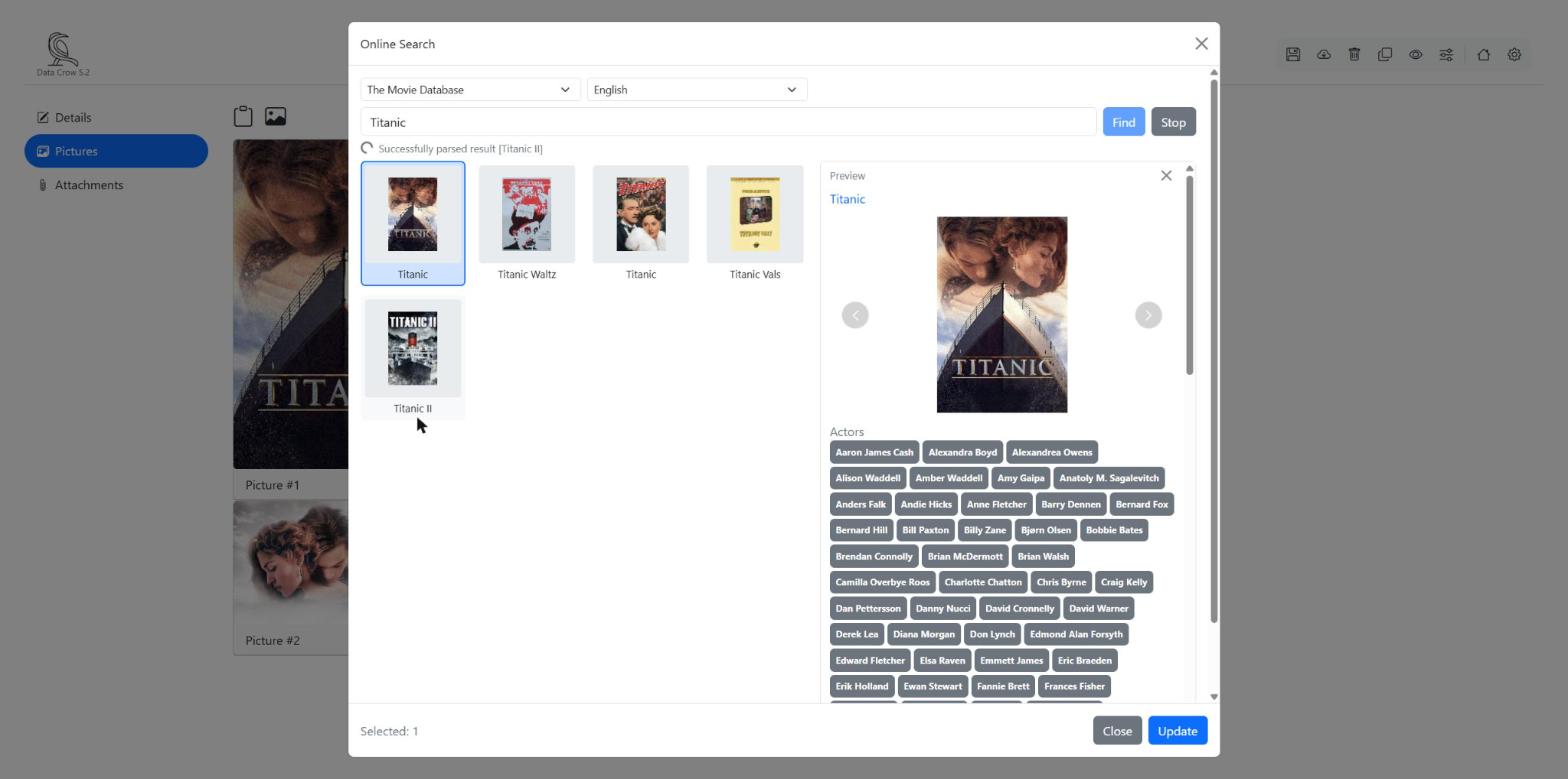
Click a result to select it. A preview appears next to the list, with its values and pictures. At the bottom of the window you see how many results you selected (Selected: 1). To add several results at once, click each of them.
Adding items to your collection #
- Select the results you want to add.
- Click Add.
- A message tells you how many items were added.
Sometimes a result misses information which the module requires, such as a title. Data Crow cannot save that item by itself. Instead it opens the first of these results in the form for a new item, filled with everything it found. Fill in the missing value and click Save. The pictures of the result are saved with the item.
Updating an item you already have #
- Open the item, click Edit and then Online Search . The search starts with the name of the item.
- Choose one result and click Update.
- The details of the result are filled in on the edit form. Have a look, change anything you like and click Save.
Nothing is changed until you click Save, so you can always look at the result first.
Values which the item already has are only replaced when the module is set up to allow that. If the result would not change anything, you get a message and you can choose another result. If the result has a picture, the picture is added when you save the item.


