Web client > Overview > Templates (administrators)
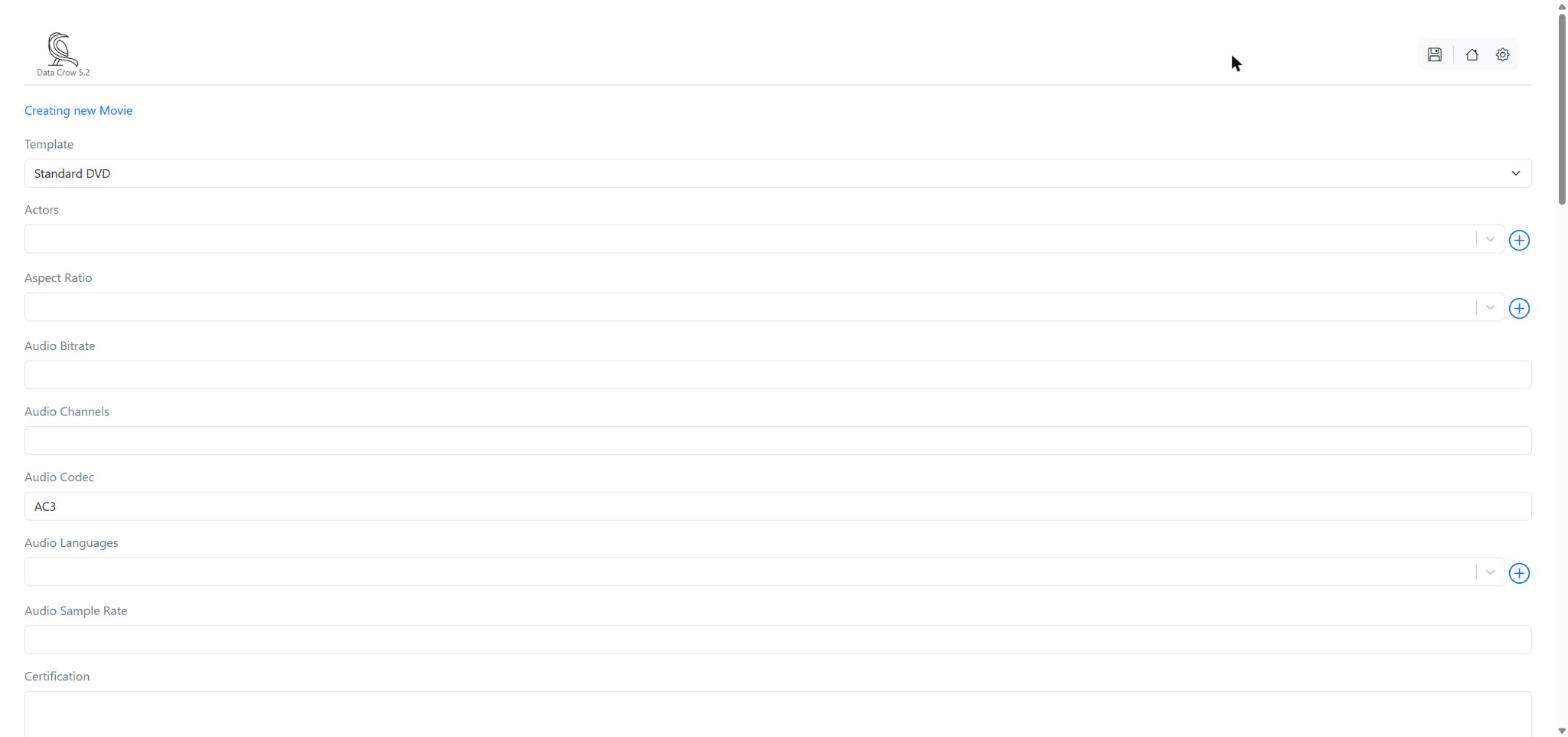
Do you often type the same values when you add items? For example the same storage medium, the same language, or the same format? With a template you fill in those values once. When you create a new item, you choose the template and the form is filled in for you.
Administrators maintain the templates with the button in the top bar of the overview. You see this button for modules which have templates.
Creating a template #
- Click Templates in the top bar. If the module has child items, such as the tracks of a music album, you can choose whether you want the templates of the module or of the child module.
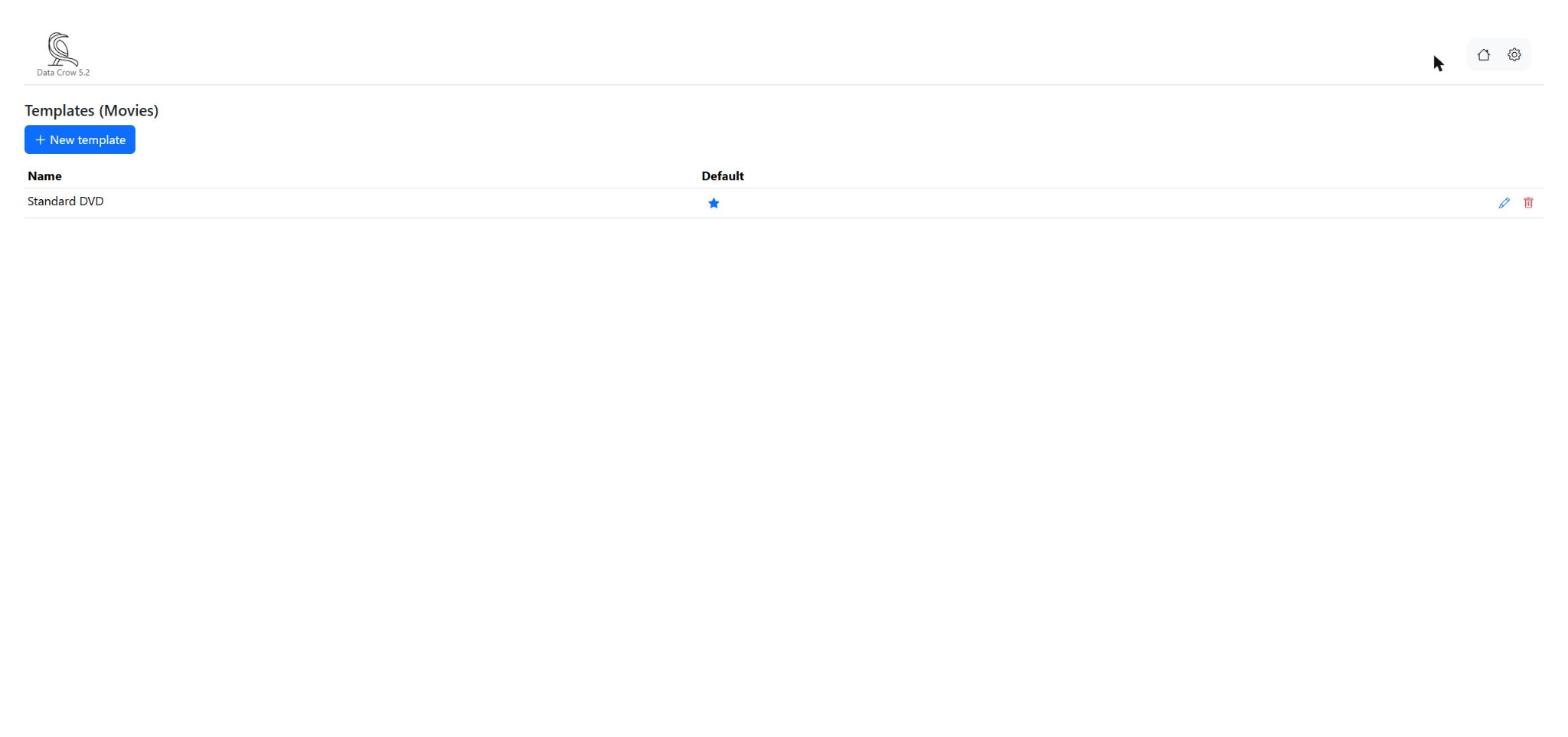
- Click New template.
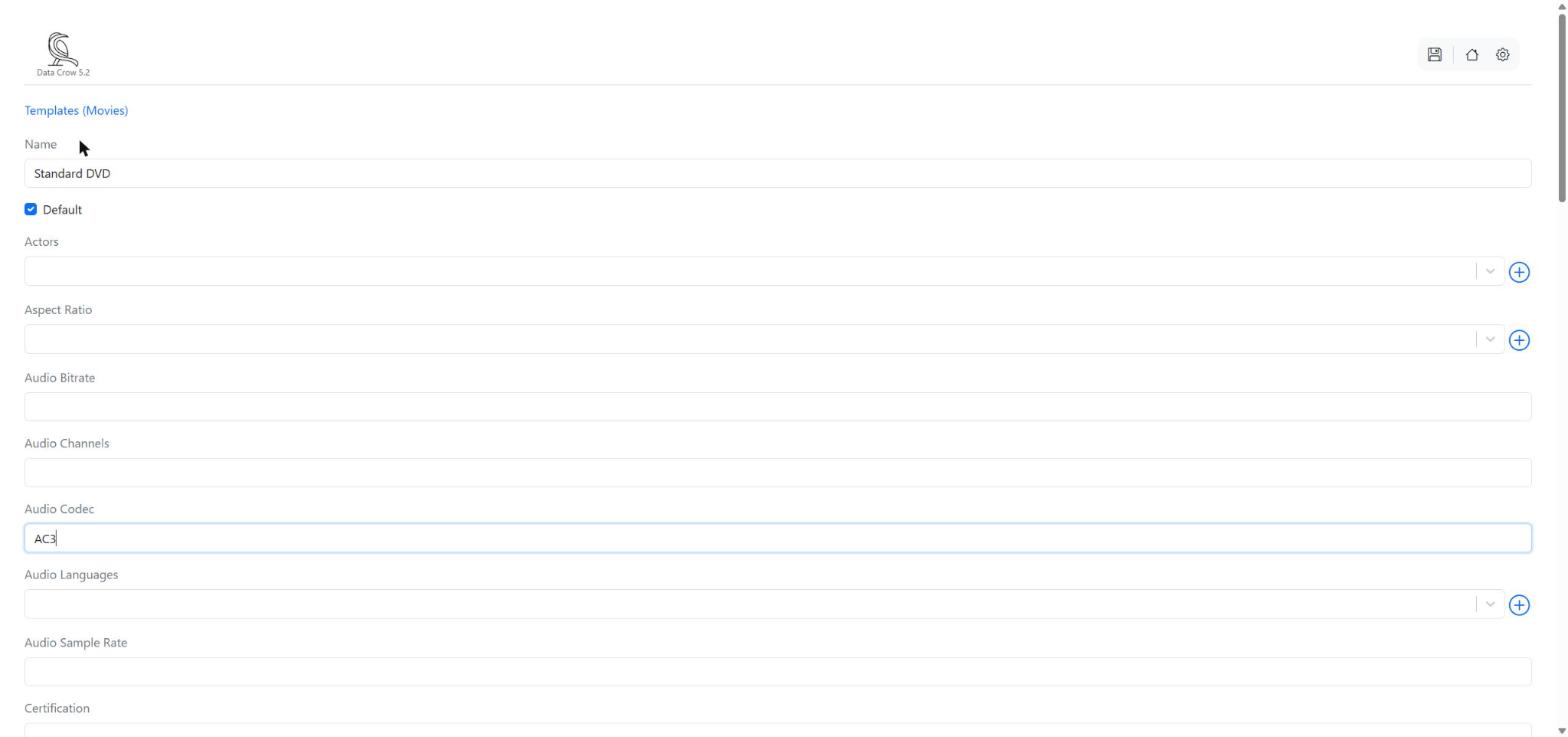
- Give the template a name. This is the name which users see when they choose a template.
- If you want this template to be used automatically for every new item, tick Default.
- Fill in the values you want the template to contain. Leave the other fields empty.
- Click Save.
Changing, deleting and the default template #
- In the list of templates, click the star in the column Default to make a template the default. A filled star means it is the default.
- Click the pencil to change a template.
- Click the trash can to delete a template. Data Crow asks for a confirmation.
Using a template #
When you create a new item, the form has a list called Template at the top. The default template is chosen when the form opens. Choose another template in the list to fill the form with its values instead. See Viewing, Editing and Creating Items.