
Using Data Crow in your web browser
The web client lets you use your collection in a web browser, such as Chrome, Edge, Firefox or Safari. There is nothing to install: all you need is the address of the web client and your user name. If you run Data Crow yourself, see Data Crow Server to set it up.
The web client works the same for every module, whether it is one of the standard modules or a module you created yourself. What you see, such as the fields and what you are allowed to do, depends on the module and on your user. When the administrator adds a module or changes one, you see the change right away.
Logging in #
- Open the address of the web client in your browser.
- If you want, choose your language in the list above the user name. The list shows the languages your administrator has made available.
- Type your user name and your password.
- Click Login. You now see the overview of your collection.
If you cannot log in #
- The login fails. Check your user name and password. Passwords are case sensitive.
- A message says the server cannot be reached. The Data Crow Server is probably not running, or something is blocking the connection. Ask your administrator to have a look.
- A message says the server is in maintenance mode. The administrator is busy with a backup or with a change to the modules. Wait a few minutes. The page checks by itself, and the login form comes back as soon as the server can be used again.
Choosing a new password #
Sometimes you are asked to choose a new password right after you have logged in. This happens when your administrator has made the password rules stricter, or when your password has expired. The screen tells you what the new password has to look like. Type the new password twice and click OK. You are then logged in with the new password.
Logging in with a code (two-factor authentication) #
Two-factor authentication makes your account safer. Besides your password you also need a code from an app on your phone. It is your own choice to use it: if you have not switched it on, you will not notice anything.
If you have switched it on, a second screen appears after you have typed your password:
- Open the authenticator app on your phone.
- Type the code which the app shows. If you do not have your phone with you, type one of your recovery codes instead. Every recovery code works only once.
- If you do not want to be asked for the code again on this computer, tick Do not ask again on this device for 30 days.
- Click OK.
Your password is always needed, also when you chose not to be asked for the code again. When you change your password, or use Forget all devices in the settings, the code is asked again everywhere. You switch two-factor authentication on in the settings, see Settings.
Staying logged in and logging out #
You stay logged in when you reload the page. When you have not done anything for a while (by default four hours; your administrator can change this) you are logged out automatically; just log in again. To log out yourself, click the door icon at the right of the top bar. You do not see this icon when you are logged in without a password.
The top bar #
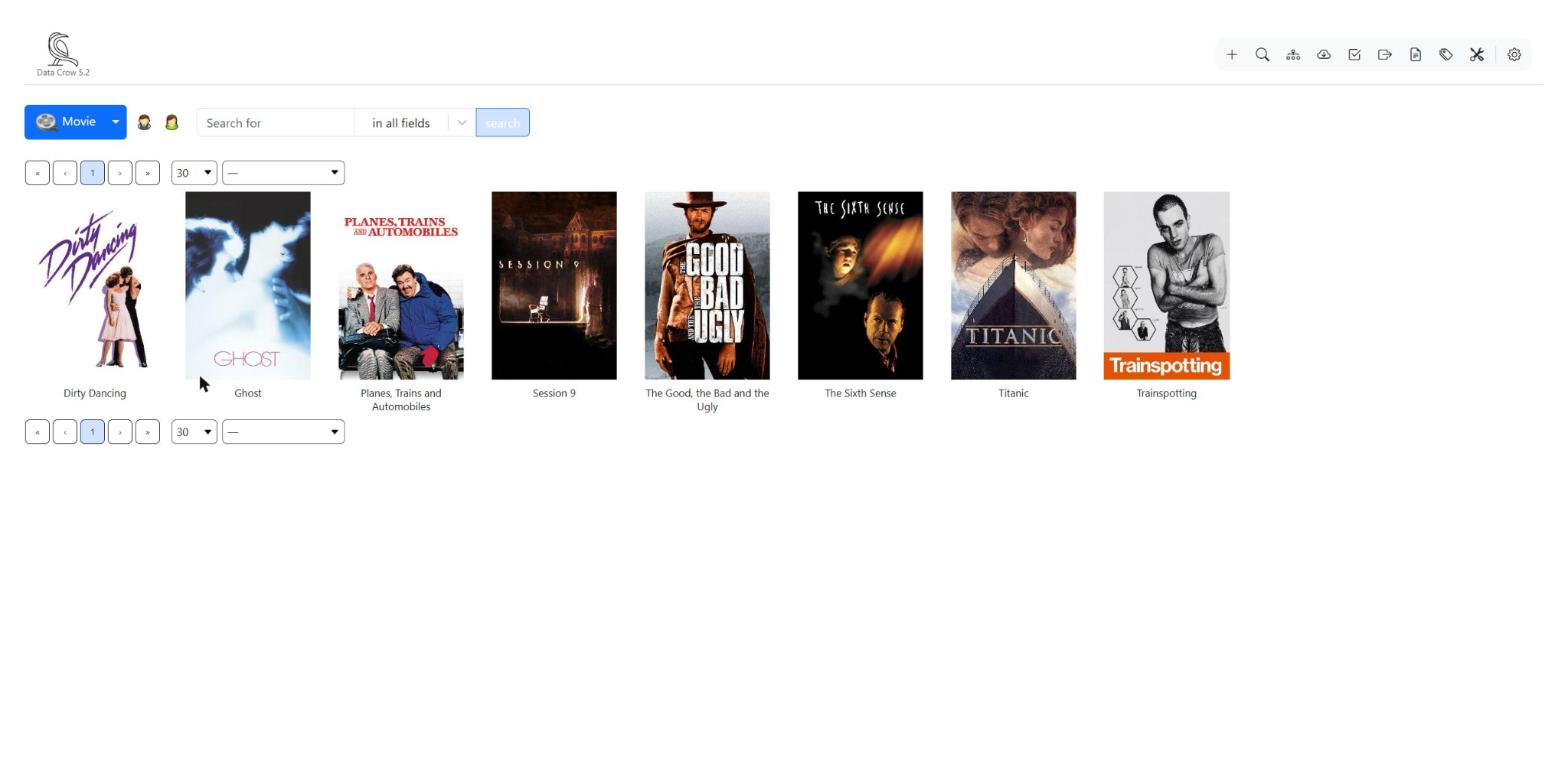
At the top of every screen you find the top bar. On the left is the Data Crow icon with the version number. Click it to go back to the overview. On the right are the buttons for what you can do on the screen you are on, followed by the Home button (on every screen except the overview), the settings and the log out button .
On the overview the following buttons can be shown. You do not always see all of them: it depends on the module and on what you are allowed to do.
- Create a new item. See Viewing, Editing and Creating Items.
- Advanced Find: search with several conditions at once. See Browsing and Searching.
- Group By: browse your items in a tree. See Browsing and Searching.
- Online Search: look up information on the internet and add it to your collection. Only for modules which have online services. See Online Search.
- Select items: pick several items to lend or return them at once. See Loans.
- Loan Administration: an overview of all loans. See Loans.
- Templates: ready-made values for new items (administrators). See Templates.
- Maintain properties: the lists of values such as categories or storage media. See Property Values.
- Tools: auto numbering and rewriting titles or names (administrators).
Where to go from here #
- Browsing and Searching: find your items.
- Viewing, Editing and Creating Items: work with your items.
- Online Search: let Data Crow fill in the details for you.
- Loans: lend items to other people.
- Property Values and Templates: keep your lists tidy and save time.
- Settings: change the theme, your password and more.
- Administration and Module Wizards: for administrators.


