
Web client > Settings (gear icon in the top bar)
Click the gear in the top bar to open the settings. On the left you see the sections (on a small screen they are a list at the top). Click a section to see its options. Looking for something? Type in Find in Settings and click the result: Data Crow takes you there.
This page describes the sections which every user has. The sections for administrators are described in Administration.
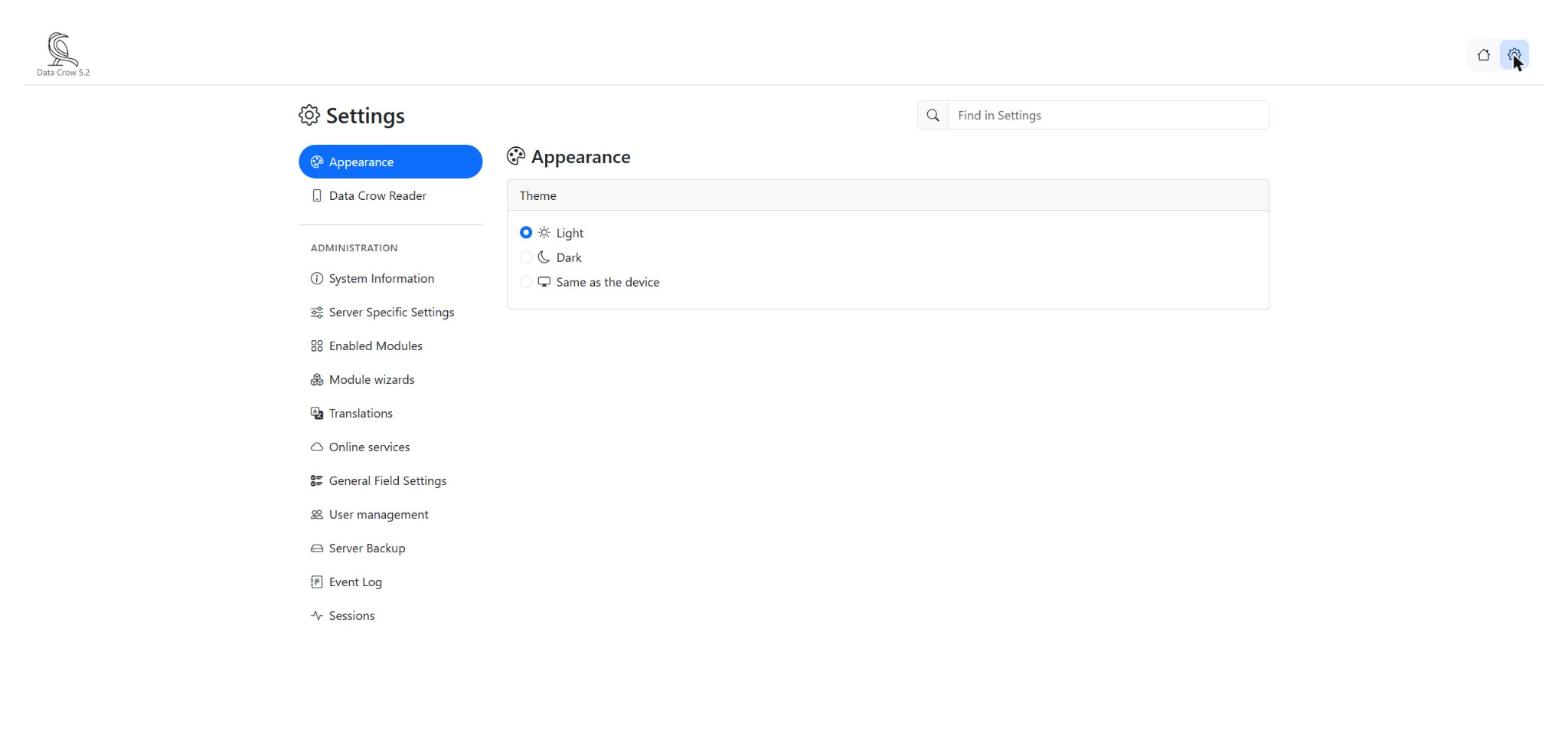
Appearance #
Choose how the web client looks: Light, Dark or Same as the device. The last option follows your computer or phone: when it switches to dark in the evening, so does the web client. This setting only applies to the browser you are using now.
Change password #
- Open the section Change password.
- Type your old password, then your new password, and the new password once more.
- Click Save.
Your administrator can set rules for passwords, such as a minimum length. If your new password does not meet the rules, a message tells you what is needed. You do not see this section when you are logged in without a password.
Two-factor authentication #
With two-factor authentication you need a code from an app on your phone, besides your password, to log in. If someone finds out your password, they still cannot log in without your phone. Any authenticator app will do, such as the ones from Google or Microsoft.
Switching it on #
- Install an authenticator app on your phone, if you do not have one yet.
- In the section Two-factor authentication, type your password and click Switch on.
- Scan the QR code on the screen with the app. If you cannot scan, type the key which is shown into the app instead.
- Type the code which the app now shows, and confirm.
- Data Crow shows your recovery codes. Write them down or print them and keep them in a safe place. You can only see them now. Each code works once, for when you do not have your phone with you.
Please note: apps which do not support two-factor authentication yet, such as older versions of the Data Crow Reader app, can no longer log in with your user after you switch it on.
When it is switched on #
The section tells you how many recovery codes you have left. From here you can:
- New recovery codes: get a fresh set of recovery codes. The old ones stop working.
- Forget all devices: if you have chosen not to be asked for a code on some computers, they will ask for a code again.
- Switch off: go back to logging in with only your password.
For these actions you need to type your password and a code. How logging in with a code works is described in The Web Client.
Data Crow Reader #
The Data Crow Reader is the app for your phone. To connect it to your collection, open this section and scan the QR code with the app. If you cannot scan it, type the settings into the app yourself: whether HTTPS is used, the server address and the port. More about the app: The Data Crow Reader App.


